








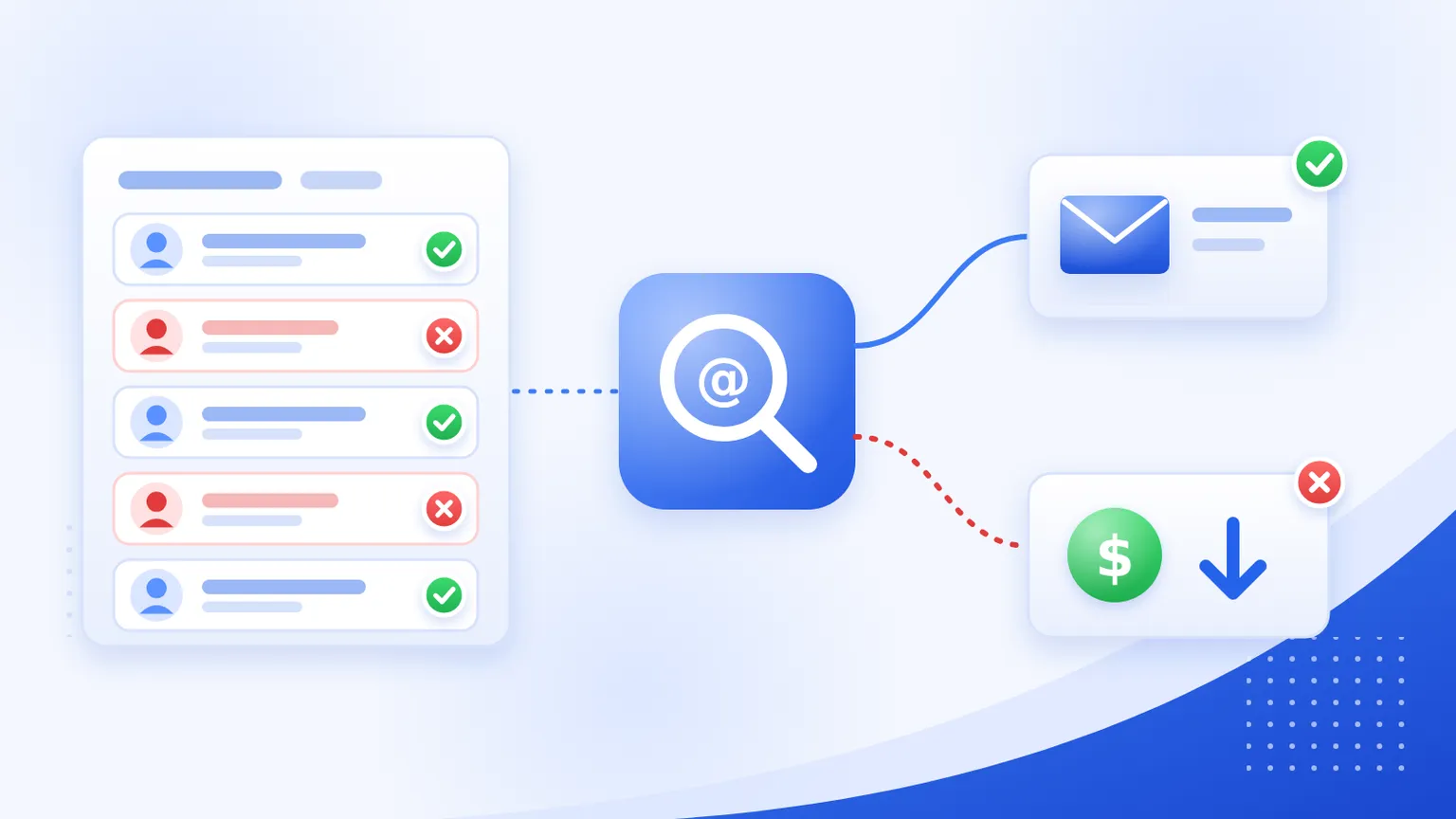
HubSpot data hygiene covers a lot: duplicates, messy job titles, half-filled company records. This guide covers one part of it, the part that costs you money every month: email addresses that can't receive mail.
Two things make bad addresses expensive in HubSpot. They count toward your bill while they're marketing contacts, and every one you email bounces, which HubSpot treats as a risk to your sender reputation. Here's how to find them, check the ones that haven't bounced yet, and take them off your bill.
Why invalid emails cost money in HubSpot
HubSpot splits contacts into two kinds. From HubSpot's marketing contacts billing guide:
- Marketing contacts are contacts you engage with through HubSpot's marketing tools each month, such as marketing emails and ads. They count toward your contact tier.
- Non-marketing contacts are contacts you don't market to, and you're not billed for them.
An address that can't receive email has no reason to be a marketing contact. Moving it is up to you: HubSpot's clean-up tool pre-selects bounced and unsubscribed contacts and recommends setting them as non-marketing, but you make the change.
Two timing details matter:
- Status changes don't apply straight away. Setting a contact as non-marketing takes effect on your next update date. On a monthly subscription that's your renewal date each month. On a yearly subscription it's the first day of each month.
- Tiers only go down at renewal. HubSpot says it doesn't downgrade contact tiers mid-term. Cleaning up still keeps you from moving up a tier, but the saving from a lower tier arrives when your contract renews.
What HubSpot already does about bounces
HubSpot does handle bounces, but only after they happen. From its hard vs soft bounce article:
- Hard bounce: usually a permanent error. HubSpot drops these contacts from future marketing emails.
- Soft bounce: a temporary problem with the recipient's server. These contacts can still receive future emails.
So HubSpot's bounce handling kicks in after an address has bounced. By the time a contact is suppressed, that bounce has already happened on one of your sends.
That gives you two jobs:
- Find the contacts that have already bounced and take them off your bill.
- Check the contacts that haven't been emailed yet, or not recently, before your next send.
Step 1: Find your bounced contacts in HubSpot
HubSpot has a default contact property called Email hard bounce reason. To list every contact who has hard bounced, create a segment with the filter:
Contact properties → Email hard bounce reason → is known
This is the filter HubSpot uses in its guide to contacts who previously bounced. You need edit permissions for segments to create one.
For a single email, open the email's Recipients tab and choose Bounced. From there you can create a segment of just the contacts who bounced on that send.
Two caveats from HubSpot's docs:
- Bounces belong to the address, not the person. If you change a contact's email address, HubSpot stops treating that contact as bounced.
- Global bounces may show no reason. If an address hard bounced across several HubSpot accounts but not yours, the property can be empty even though HubSpot won't send to it.
Step 2: Verify the contacts that haven't bounced yet
Bounced contacts are the ones you already know about. The rest of your marketing contacts may still include typos, deleted mailboxes and throwaway signups that haven't been emailed yet.
To check them, export the contacts from HubSpot as a CSV and verify the file in MailValid:
- In HubSpot, export the contacts you plan to email. Include the Email column.
- Upload the CSV to MailValid's bulk verification. It finds the email column for you.
- Download the results as CSV.
Every address comes back with one of five statuses:
| Status | What it means | What to do in HubSpot |
|---|---|---|
valid |
The mailbox exists and accepts mail | Keep as a marketing contact |
invalid |
The address can't receive mail | Set as non-marketing |
do_not_mail |
May work but risky: disposable, role-based (like info@) or a past spam complaint |
Usually set as non-marketing; see below |
catch_all |
The domain accepts all mail, so this mailbox can't be confirmed | Keep, but don't treat as confirmed |
unknown |
No definite answer from the mail server | Keep, and check again later |
do_not_mail needs judgement. Disposable addresses are rarely worth keeping. Role-based addresses such as sales@ can be real buyers, especially in B2B. Our guide to role-based email addresses covers when to keep them.
catch_all doesn't mean bad either. Our guide to catch-all domains explains why these can't be confirmed.
What it costs: valid, invalid, catch_all and do_not_mail results use one credit each. unknown results and repeated addresses in the same file are free. New accounts get 100 free credits. The free plan verifies up to 100 emails per bulk job; paid plans take up to 10,000 per job. See pricing.
Step 3: Bring the results back into HubSpot
To record the result on each contact, create a custom contact property in HubSpot, for example MailValid status. Then import the results CSV:
- Choose to update existing contacts. HubSpot's import guide says you need a unique identifier to update existing records, and for contacts that can be Email.
- Pick the update existing contacts only option, so the import doesn't create new contacts.
- Map the status column to your MailValid status property.
You need Import and Edit permissions for contacts to do this.
Now you can build a segment of contacts whose MailValid status is invalid (and do_not_mail, if you decide to drop those too).
Step 4: Set bad addresses as non-marketing
HubSpot offers three ways to do this, all described in its guide to setting contacts as non-marketing:
- From the contacts list. Go to CRM → Contacts, select the contacts, open the More menu and choose Set as non-marketing contacts.
- With the clean-up tool. In Account & Billing, open Marketing Contacts and choose Clean up contacts. Bounced and unsubscribed contacts are already selected. You can also filter by segment, so your
invalidsegment works here. - With a workflow. Use the action Set marketing contact status and choose Set as non-marketing. This needs Marketing Hub Professional or Enterprise.
Remember the timing: the change applies on your next update date, not straight away.
Non-marketing contacts stay in your CRM with their history. They can't receive marketing emails, but HubSpot says you can still send them other types of emails whatever their marketing status. For an address that can't receive mail anyway, the switch only removes it from your bill.
Step 5: Keep new bad addresses out
A one-off clean-up only lasts until the next batch of bad signups arrives. To check new contacts as they're created, add a verification step to an automation:
- Integrately: trigger on Contact is created in HubSpot, add Verify Email in MailValid, then Update contact in HubSpot to write the result into your property. The setup is in our Integrately guide.
- Zapier: trigger on a new HubSpot contact and add MailValid's Verify Email action. It returns
status,status_reasonand flags likeis_disposableandis_role_basedthat you can write back to HubSpot. See the Zapier setup.
These run after the contact exists. To stop a bad address being entered in the first place, check it on your own signup form with the API. Our guide to verifying emails in a signup form shows how.
A monthly HubSpot data hygiene routine for email
- Check the Email hard bounce reason is known segment and set those contacts as non-marketing.
- Before any large send, verify the contacts you haven't emailed recently.
- Set new
invalidresults as non-marketing. - Re-check
unknownresults. - Do steps 1 and 3 a few days before your update date, so the changes count for the next billing period.
For the wider picture beyond HubSpot, see how MailValid helps keep your CRM clean.
FAQ
Doesn't HubSpot already handle bounced contacts?
Partly. HubSpot drops contacts from future marketing emails after they hard bounce, but that happens after the bounce. Verifying addresses before you send catches bad ones before they bounce, and you still need to set bounced contacts as non-marketing to stop paying for them.
Do bounced contacts count toward my HubSpot bill?
Yes, while they're still marketing contacts. HubSpot only stops billing for a contact once it's set as non-marketing, and that change takes effect on your next update date.
Should I delete invalid contacts or set them as non-marketing?
Setting them as non-marketing stops the billing and keeps the record, along with its history, in your CRM. Whether you delete records is your call, but you don't need to delete them to stop paying for them.
Can I verify emails in HubSpot without exporting?
Yes, with an automation. Integrately and Zapier can verify each new HubSpot contact as it's created and write the result back. For contacts you already have, exporting a CSV and verifying it in bulk is the quickest route.
What should I do with catch-all and unknown results?
Keep them as marketing contacts. Neither one means the address is bad. Re-check unknown results later; they don't use credits.